A tour of Mi MDev: what each screen does
Mi MDev is built around three screens: a home dashboard, a messages view for reading device SMS, and a settings screen for the device you’re currently managing. Here’s what each one actually does.
Home
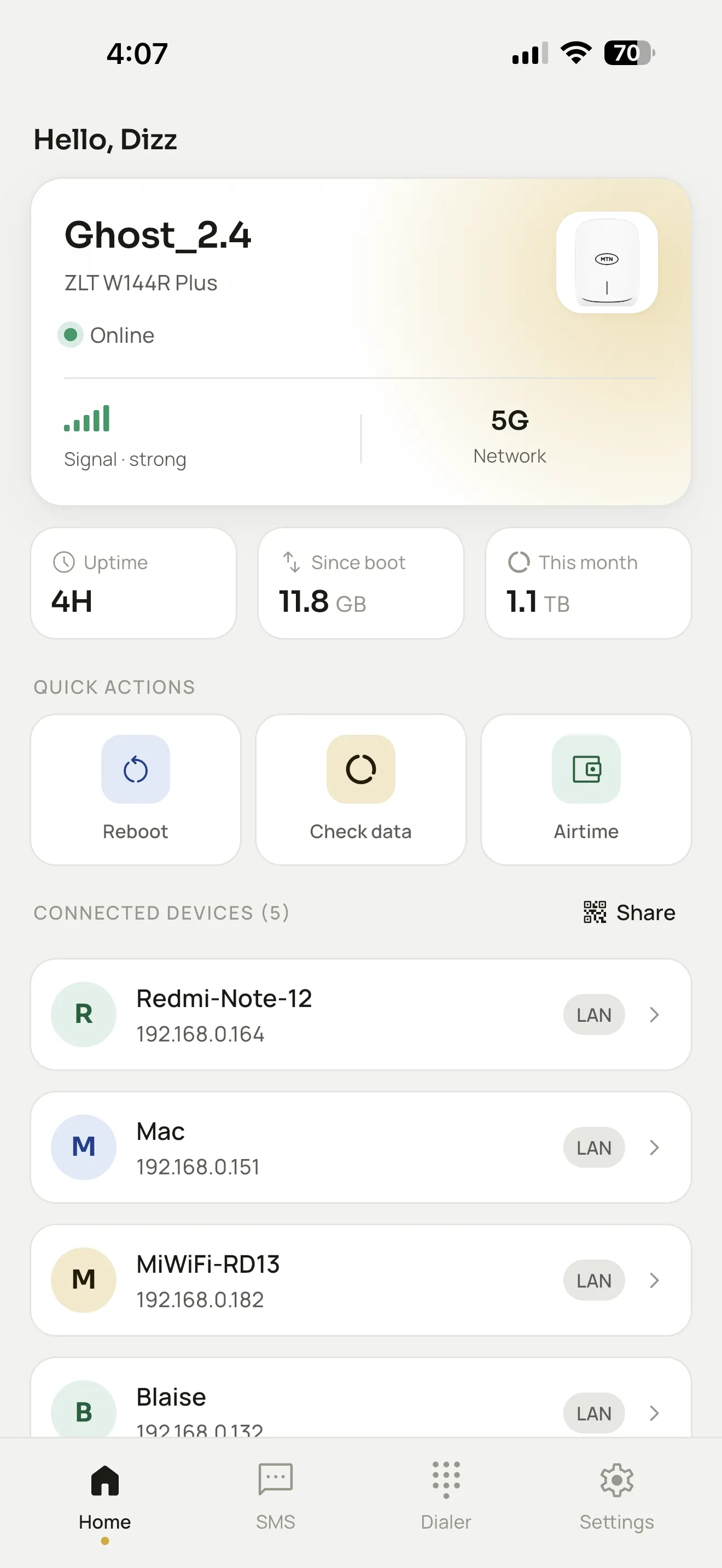
The home screen is the dashboard: your active device’s name, connection status, signal strength, network type, and this month’s data usage all in one place. The quick actions row (Reboot, Check data, Airtime) covers the three things people actually do most often, and the connected-devices list below shows everything currently on the network.
Messages
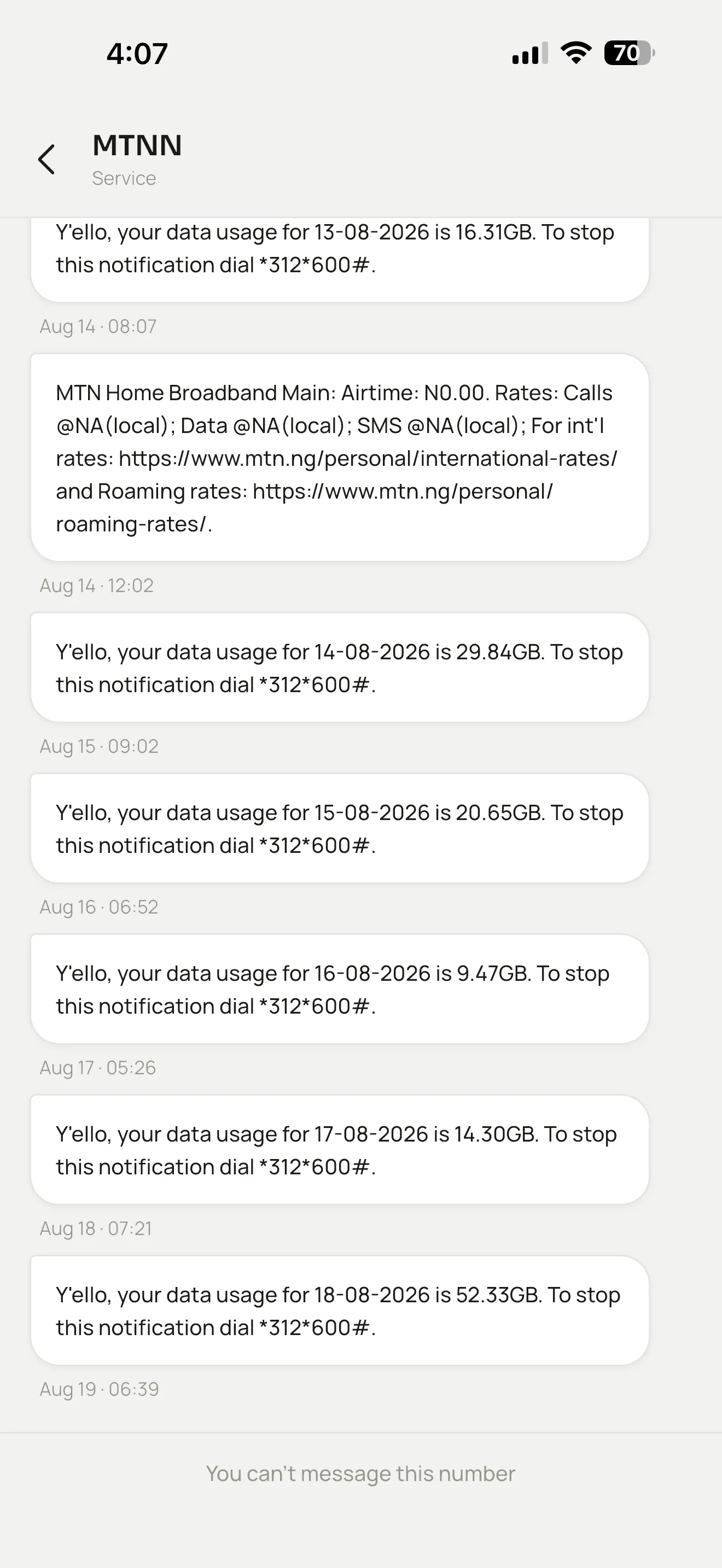
Your MTN device sends a lot of SMS: daily data usage alerts, balance notifications, network messages. This view reads them straight from the device instead of making you dig through your phone’s own SMS app for texts from a number you’ve probably never saved.
Settings
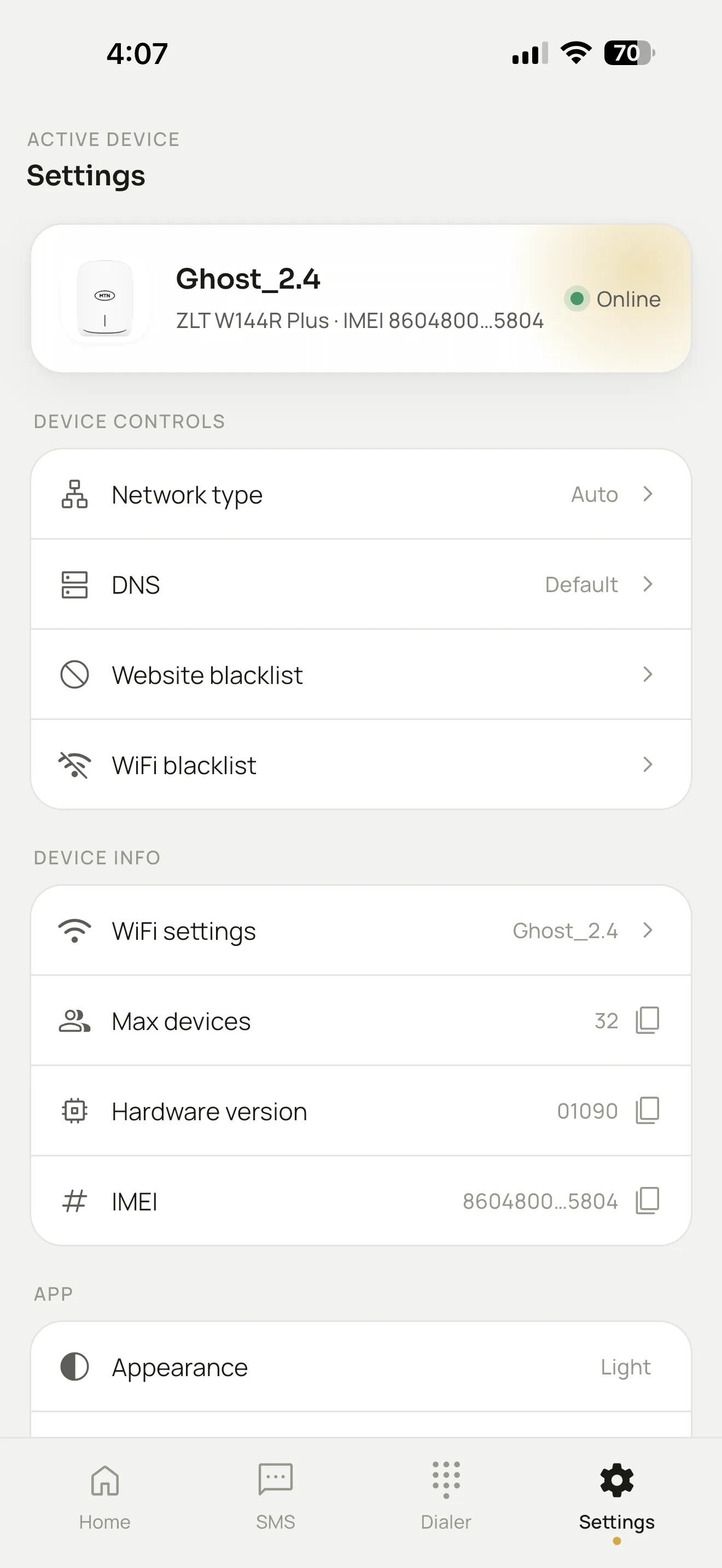
Settings is where the actual device controls live: network type (auto vs. forced 4G/5G), DNS, website and WiFi blacklists, and the raw device info you’d otherwise have to log into the router’s own web UI to find, such as hardware version, IMEI, and max connected devices.
That’s the whole app, really: three screens, no menus you have to hunt through.